

Your intake line rings at 2 a.m. during a storm, and half the callers have a slow drip under the sink. A restoration website triage widget fixes that by sorting true emergencies from minor issues before your phone even rings. It asks two or three quick questions, then sends each visitor down the right path.
Restoration owners lose booked jobs when crews chase low-value calls during peak demand. This post shows the exact decision flow, button copy, and routing rules you can copy today.
You will learn how to separate emergency vs non-emergency restoration leads, what each button should say, and how to track which path produces real revenue.
What a Restoration Website Triage Widget Actually Does
A restoration website triage widget is a small on-page tool that asks visitors about their situation and routes them based on urgency. It replaces a single generic “Contact Us” button with a short branching flow. The goal is to match each visitor to the fastest correct next step.
Most restoration sites treat every lead the same way. A burst pipe flooding a basement gets the same form as someone asking about mold inspection pricing. That sameness burns dispatch hours and drops revenue during storm season.
The widget sorts by urgency first, service type second, and location third. That order matters because a flooding home cannot wait for a form reply. The difference between a same-hour call and a next-day email is the difference between a $12,000 water job and a lost lead.
Why Generic Home Services Flows Fail Restoration Companies
Plumbers and HVAC firms book appointments. Restoration work splits into true emergencies and slower inspections. A single appointment scheduler ignores that split and buries your dispatcher in misrouted calls.
Restoration demand spikes hard and fast after a freeze or hailstorm. During those windows, your team cannot afford to screen non-emergency questions by phone. The widget does that screening automatically.
The Three-Button Decision Flow (Copy and Paste)
Keep the first screen to one question and three buttons. Fewer choices mean faster decisions from panicked visitors. Here is the opening prompt and button copy that works.
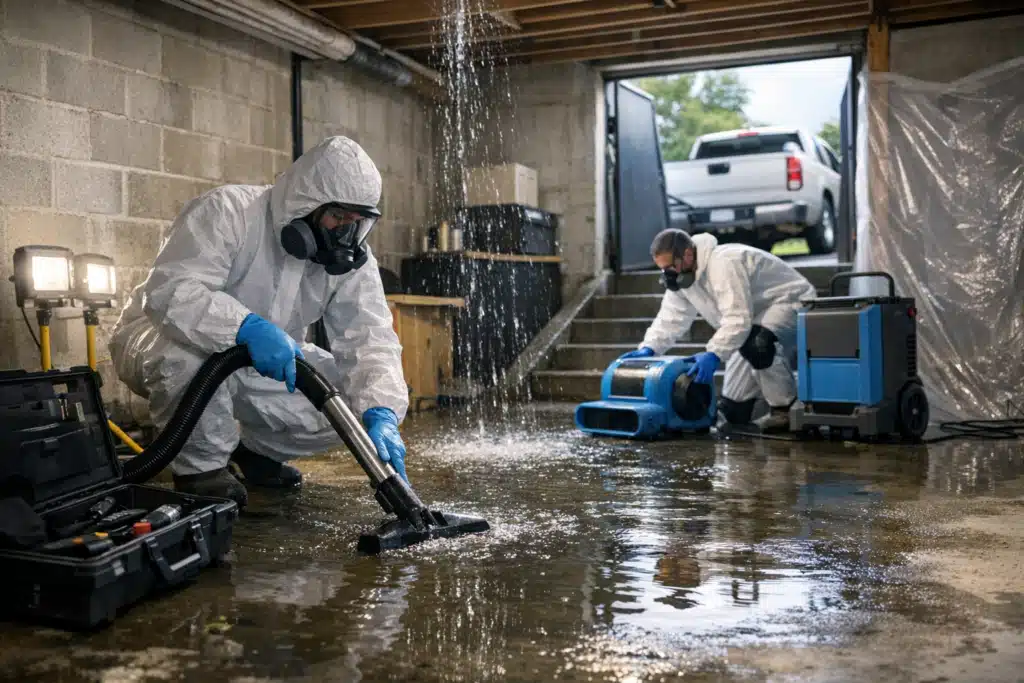
Headline: “What’s happening right now?”
- Button 1 — “Water or flooding in my home right now”
- Button 2 — “Damage already happened (fire, mold, past leak)”
- Button 3 — “I have a question or need a quote”
Each button leads to a different outcome. No visitor sees a long form before they pick a path. The whole first screen loads in under two seconds.
Path 1: Active Emergency → Call Now
When someone taps the flooding button, show a single screen with a tap-to-call number and nothing else. No form, no fields, no delay. Water spreads by the minute, and typing is the last thing that person wants to do.
Screen copy: “Standing water spreads fast. Tap to reach our crew now — we answer 24/7.”
Add one line below the button: “If you can safely do it, shut off your water main.” That single tip builds trust before the call connects. It signals you handle real emergencies, not just paperwork.
Path 2: Past Damage → Schedule Inspection
Fire residue, dried water stains, and visible mold are serious but not minute-by-minute. Route these visitors to a short inspection scheduler. Ask only for name, phone, address, and damage type.
Screen copy: “Let’s look at the damage. Book a free on-site inspection — most within 24 hours.”
This path protects your emergency line from non-urgent traffic. It also captures insurance-driven jobs that need documentation before mitigation starts. Those inspections frequently convert into multi-day contracts.
Path 3: Questions or Quotes → Low-Priority Form or Refer Out
Some visitors want pricing, warranty info, or help you do not offer. Give them a simple form with a clear response window. Set expectations so they do not call your emergency line.
Screen copy: “Send us the details and we’ll reply within one business day.”
Build a referral rule for jobs outside your scope. If someone needs roofing or general contracting you do not provide, show a short note: “We focus on water, fire, and mold restoration. For roof repair, we recommend a licensed roofer.” That honesty protects your reviews and keeps your crews focused.
Routing Rules That Reduce Dispatch Chaos
The button copy only works if the routing behind it is strict. Vague rules push calls back to a human screener and defeat the purpose. Use this rule set as your starting point.
- Active water, sewage, or fire → immediate call. No form ever stands between this visitor and your phone.
- Visible mold or past damage → inspection booking. Captured as a scheduled lead, not an emergency dispatch.
- Pricing or general questions → next-day form reply. Routed to office staff, not field crews.
- Out-of-scope requests → referral message. No lead captured, no crew time wasted.
- After-hours emergencies → call forwarding or answering service. Non-emergencies wait for morning.
Set your after-hours logic by time of day. Between 10 p.m. and 6 a.m., hide the question form entirely. Show only the emergency call button and a “we’ll reply in the morning” note.
Tagging Leads by Path for Better Tracking
Tag every submission with the path it came from. Label them “emergency,” “inspection,” or “inquiry” in your CRM. This lets you see which path produces booked revenue.
Most restoration owners cannot answer a basic question: what percent of web leads are true emergencies? The widget answers it automatically. One client found 38 percent of their “urgent” calls were actually quote requests.
Track cost per booked job by path, not just cost per lead. An inspection lead at $45 that books a $9,000 job beats a $20 emergency lead that never answers the follow-up.
Seasonal Adjustments for Storm Demand
Your widget should shift with your demand curve. During a regional freeze or hail event, call volume jumps and your crews max out. Adjust the flow so it protects capacity.
- Peak storm weeks: Add a line to the emergency screen: “High call volume — leave a voicemail and we’ll call back in order.”
- Slow months: Promote the inspection path harder to fill crew schedules with mold and minor water jobs.
- Insurance-heavy periods: Add a field asking “Have you filed a claim yet?” to pre-qualify documentation needs.
These small edits take minutes but change which jobs land on your board. During a storm surge, the widget becomes a demand valve. It keeps paying emergencies first in line.
How to Build It Without Complex Tech
You do not need a developer or expensive software. Most restoration owners build this in a weekend. Here is the lightest version.
- Use a simple multi-step form tool that supports conditional logic — many site builders include one.
- Create three paths matching the buttons above.
- Wire Path 1 to a tap-to-call link using your real emergency number.
- Connect Paths 2 and 3 to your CRM or email with the correct tag.
- Add time-based rules for after-hours behavior.
Place the widget on your homepage and every service page. Make the first screen visible without scrolling. On mobile, the emergency button should sit above everything else.
Test it from a phone before you launch. Tap each path and confirm the call connects and tags fire correctly. A broken emergency button during a storm costs real jobs.
Conclusion
A restoration website triage widget sorts emergency vs non-emergency restoration leads before they reach your crews, protecting capacity during peak demand. Strict routing rules, clear button copy, and path-level tracking turn chaotic intake into booked revenue. Start with the three-button flow above and adjust it by season.
Want help building and tracking a triage flow that fits your market and demand curve? Call or text The Restoration Marketers at 720‑885‑0749, or visit https://restorationmarketers.com.